
Overview
KimP0ssible Autosplitter uses real-time OCR to read on-screen text from your game and automatically trigger splits in your speedrun timer. It connects to LiveSplit Server to send split commands in real time, or works standalone with its own built-in timer.
Originally built for Tom Clancy's The Division 2, it works with any game that displays matchable text. Just create an XML profile with your keywords and go.
Application Screenshots
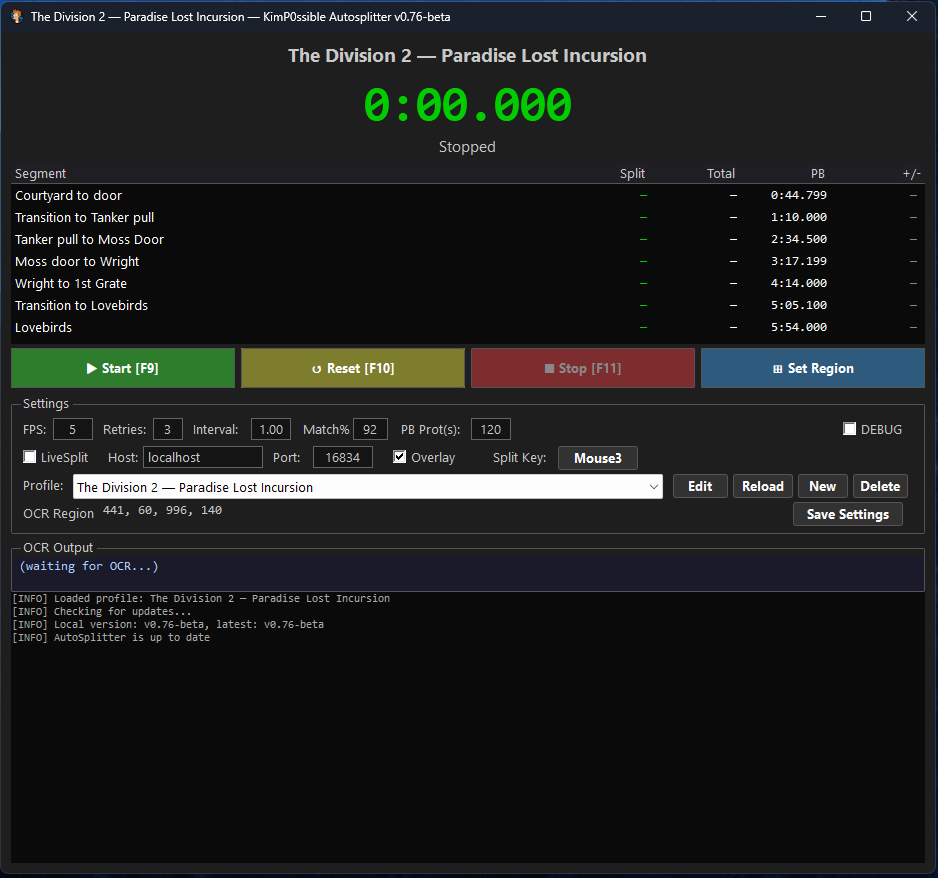
The main AutoSplitter window showing the split table, timer, settings panel, OCR output, and log
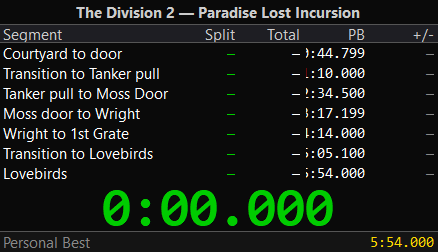
The game overlay mirrors your splits and timer directly over your game
Getting Started
Installation
- Download the ZIP from autosplitter.attr.ee
- Extract to a folder of your choice (e.g.
C:\Tools\AutoSplitter\) - Run AutoSplitter.exe — no installation, runtime, or setup needed
First Run
- Launch AutoSplitter and select a profile from the dropdown, or click New to create one for your game.
- Open your game and set it to the resolution you normally play at.
-
Set the OCR capture region — click Set Region,
then draw a rectangle around the area of the screen where objective/mission text appears.
- Press S to save the region to your profile
- Press Q or Esc to close without saving
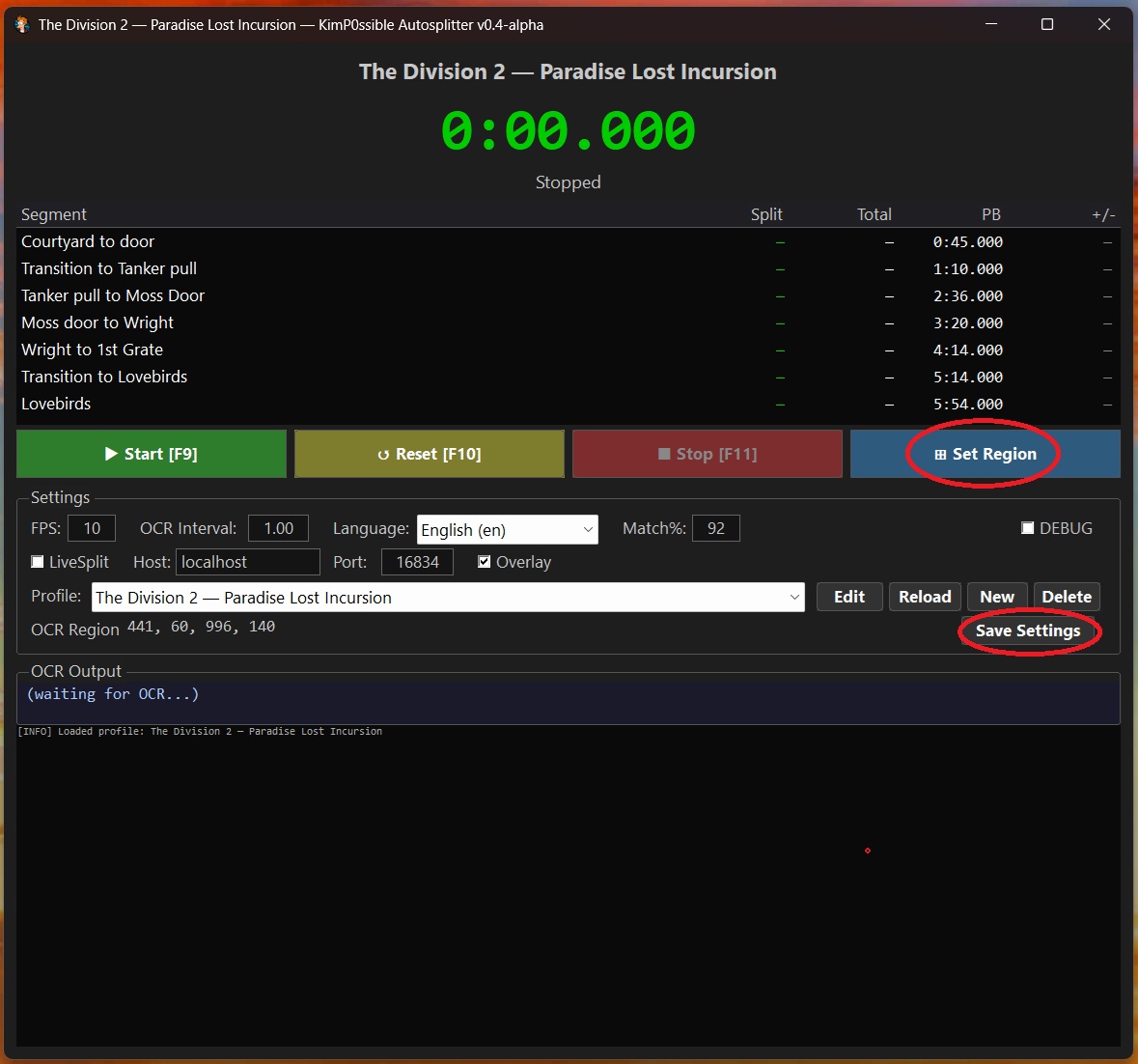
Drawing the OCR capture region over the game's objective text area
-
Configure your splits in the XML profile. Each segment needs one or more
keyword phrases that the OCR will match against. You also need a StartTrigger
with at least one
<To>keyword (and, optionally, one or more<From>keywords for a two-phase trigger) to tell the timer when to begin. - Click Start (or press F9) and play your game. The autosplitter will watch for text matches and trigger splits automatically. Enable the DEBUG checkbox to see OCR readings in the log.
Global Hotkeys
These hotkeys work globally — even when your game is in the foreground and AutoSplitter is in the background.
| Key | Action | Notes |
|---|---|---|
| F9 | Start | Begins capture, OCR detection, and timer |
| F10 | Reset | Resets timer to 0:00.000 and clears all split times |
| F11 | Stop | Stops the backend and detection |
| Mouse3 (default) | Manual Split | Force-advances to the next segment. Configurable via Split Key button in settings |
The manual split key can be changed to any keyboard key (F1–F12, Numpad, etc.) or mouse button (Mouse3/Mouse4/Mouse5). Click the Split Key button in settings, then press the desired key. Press Esc to cancel.
Main Window
Title Bar
Shows the currently loaded profile as Game — Mission (e.g., "The Division 2 — Paradise Lost Incursion").
Timer Display
Large centered timer in M:SS.mmm format (e.g., 5:54.000).
Updates at 20 Hz while running.
- Green — timer is running
- Gold — run complete (final segment matched)
Status Label
Text below the timer showing the current state: Stopped, Running, Complete, or Waiting for start trigger.
Split Table
Shows all segments from the active profile. Maximum 7 visible rows; scrollbar appears for longer profiles.
| Column | Meaning |
|---|---|
| Segment | Name of the split (from the profile XML) |
| Split | Time elapsed during this segment alone |
| Total | Cumulative time from run start to the end of this segment |
| PB | Personal best cumulative time (from the pb attribute in XML) |
| +/- | Difference vs PB. Negative (green) = ahead of PB. Positive (red) = behind PB |
Action Buttons
▶ Start [F9]
Starts the backend: begins screen capture, OCR detection, and the timer. Connects to LiveSplit if enabled.
↻ Reset [F10]
Resets the timer and all split times to zero. Sends a reset command to LiveSplit. Does not stop the backend.
■ Stop [F11]
Stops the backend entirely. Screen capture and OCR detection cease. Sends a reset to LiveSplit.
⊞ Set Region
Opens the calibration tool to visually select the OCR capture region. Only available when stopped.
OCR Output Panel
At the bottom of the window, shows the most recent OCR text detected in the capture region,
along with the inference time in milliseconds (e.g., 42 ms). Useful for verifying
that the OCR is reading the correct text.
Log Panel
Scrollable log showing status messages, split triggers, warnings, and errors. Enable the DEBUG checkbox to see detailed OCR text, similarity scores, keyword match attempts, and state machine transitions. Holds up to 1000 lines.
Settings Panel
All settings are saved per profile when you click Save Settings.
Row 1: Detection Parameters
| Control | Default | Range | Description |
|---|---|---|---|
| FPS | 5 | 1–30 | Screen capture rate. Higher = more responsive detection but more CPU. 5 FPS is sufficient for most games. |
| Retries | 3 | 1 to FPS−1 | When OCR doesn't find a keyword match on the newest frame, it retries older frames from the buffer. Higher values search further back in time. |
| Interval | 1.00 | 0.20–5.00 | Seconds between OCR inference runs. Lower = faster detection but more CPU usage. |
| Match% | 92 | 50–100 | Fuzzy match strictness. 92% tolerates 1–2 misread characters. Lower values are more lenient but risk false positives. |
| PB Prot(s) | 120 | 1–9999 | PB protection threshold in seconds. If a run beats the existing PB by more than this amount, the save prompt is suppressed (catches accidental/glitched runs). |
| DEBUG | Off | — | Enables verbose logging: OCR text output, similarity scores, keyword match attempts, frame retry info, and state machine transitions. |
Row 2: Integration & Controls
| Control | Default | Description |
|---|---|---|
| LiveSplit checkbox | On | Enable LiveSplit Server connection. When checked, the app connects on Start and sends split/reset commands. |
| Host | localhost | LiveSplit Server hostname or IP address. |
| Port | 16834 | LiveSplit Server TCP port (1–65535). |
| Overlay checkbox | Off | Toggle the always-on-top game overlay window. |
| Split Key button | Mouse3 | Click to enter capture mode, then press any key or mouse button to set as the manual split key. Press Esc to cancel. |
Row 3: Profile Management
| Control | Description |
|---|---|
| Profile dropdown | Lists all XML profiles found in the profiles/ folder. Selecting a profile loads its segments and settings. |
| Edit | Opens the selected profile's XML file in Notepad++ (if installed) or Notepad. |
| Reload | Reloads the profile from disk, discarding any unsaved UI changes. |
| New | Creates a new profile XML from a template. Opens in editor immediately for editing. |
| Delete | Deletes the selected profile file (with confirmation dialog). |
Row 4: Region & Save
| Control | Description |
|---|---|
| OCR Region | Displays the current capture region coordinates: left, top, right, bottom in screen pixels. Set via the Set Region button. |
| Save Settings | Writes all current UI settings back to the profile XML file. The profile auto-reloads after saving. |
OCR Region Calibration
Click Set Region (only available when the backend is stopped) to open the calibration tool. It takes a screenshot of your desktop and lets you draw a rectangle around the text area.
The green rectangle shows the saved region; the red rectangle shows the region being drawn
| Key | Action |
|---|---|
| S | Save the drawn region to the profile and close |
| Q | Close without saving |
| Esc | Close without saving |
| Click + Drag | Draw a new region (shown in red) |
A smaller, tighter region around the text area results in faster and more accurate OCR. A second "Region Preview" window shows the cropped area at full resolution so you can verify the text is fully captured.
Game Overlay
The overlay is a borderless always-on-top window that mirrors your split table and timer directly over your game. It stays visible even when the game is in fullscreen windowed mode.
The overlay showing segments, PB times, timer, and Personal Best total
- Toggle — check the Overlay checkbox in settings Row 2
- Move — click and drag anywhere on the overlay to reposition it
- Position saved — the overlay's X/Y position is saved per profile in the XML (
<Overlay x="..." y="..." />) - Auto-sized — the overlay width adjusts to fit the longest segment name
- Contents — title, segment rows (name + split + total + PB + delta), timer, and Personal Best total at the bottom
LiveSplit Integration
LiveSplit integration is enabled by default. To send splits to LiveSplit in real time, enable LiveSplit Server in your LiveSplit layout:
- In LiveSplit, right-click → Edit Layout → Add LiveSplit Server component
- Right-click → Control → Start Server
- In AutoSplitter, ensure the LiveSplit checkbox is checked and Host is
localhost, Port is16834 - Click Start [F9] — the log will confirm "LiveSplit connected" or show a warning if the server isn't running
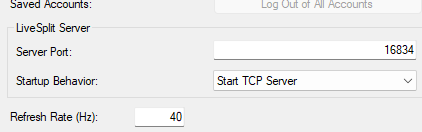
LiveSplit Server component enabled in the layout editor
Commands Sent
| Command | When |
|---|---|
starttimer | Start trigger detected (two-phase or single-phase keyword match) |
initgametime | At backend start (enables game time sync) |
setgametime | Before each split (accurate frame-based timing) |
split | Each segment keyword matched |
skipsplit | When segments are skipped (state machine jumps ahead) |
reset | User clicks Reset or Stop |
If no LiveSplit Server is detected, AutoSplitter logs a warning and continues running with its built-in timer. Use "Compare Against → Game Time" in LiveSplit for the most accurate timing (eliminates OCR delay drift).
XML Profile Reference
Profiles are stored in the profiles/ folder next to AutoSplitter.exe as XML files.
Each profile defines a game, mission, segments with keywords, and all detection settings.
Full Structure
Attribute Reference
| Element | Attribute | Type | Default | Description |
|---|---|---|---|---|
SplitProfile | profileVersion | int | 1 | Profile format version. Used for automatic upgrade merging. |
Capture | targetFps | int (1–30) | 5 | Screen capture rate in frames per second. |
Detection | cooldownSeconds | float | 5.0 | Minimum seconds between split triggers to prevent duplicates. |
Detection | pbProtectionSeconds | float | 120 | Max PB improvement (seconds) before suppressing save prompt. Catches glitched/accidental runs. |
Pixel | enabled | bool | true | Enable fade-to-black / fade-from-black detection. |
Pixel | fadeThreshold | int (0–255) | 12 | Luminance threshold for fade detection. |
Pixel | fadeFramesRequired | int | 5 | Consecutive dark frames before triggering a fade event. |
OCR | enabled | bool | true | Enable OCR text recognition. |
OCR | region | 4 ints | 0,0,800,600 | Capture region: left,top,right,bottom in screen pixels. |
OCR | intervalSeconds | float | 1.0 | Seconds between OCR inference runs (0.2–5.0). |
OCR | changeThreshold | float | 0.6 | Text similarity threshold for change detection (0.0–1.0). |
OCR | fuzzyMatchThreshold | float | 0.92 | Keyword match strictness (Match% in UI). Higher = stricter. |
OCR | ocrRetryFrames | int | 3 | Max frames back in ring buffer to retry (1 to targetFps−1). |
StartTrigger | Two-phase start: OCR must see a <From> keyword, then a <To> keyword. Timer starts on the <To> match. Multiple entries allowed for each phase. v1.3.5+: omit <From> entirely for a single-phase trigger that fires on the first <To> match. | |||
Segment | name | string | — | Display name for the split. |
Segment | final | bool | false | Marks the last segment. When matched, the run is complete. |
Segment | pb | float | — | Personal best cumulative time in seconds. Written automatically when you save a PB. |
Segment | pte | int | 0 | Prevent-trigger-execution window in seconds. OCR is skipped entirely for this segment until this many seconds have elapsed since the run started — blocks early false matches on segments that can’t realistically occur until late in a run. 0 disables the gate. |
Keyword | Text to match against OCR output. Multiple per segment (OR logic). Uses fuzzy case-insensitive substring matching. | |||
LiveSplit | enabled | bool | false | Connect to LiveSplit Server on start. |
LiveSplit | host | string | localhost | LiveSplit Server hostname. |
LiveSplit | port | int | 16834 | LiveSplit Server port (1–65535). |
Overlay | enabled | bool | false | Show game overlay window on start. |
Overlay | x, y | int | 100 | Overlay position in screen pixels. Updated when you drag the overlay. |
Hotkeys | manualSplitKey | string | Mouse3 | Key name for manual split: F1–F12, Mouse3/Mouse4/Mouse5, numpad keys, etc. |
Personal Best & PB Protection
Saving Personal Bests
When a run completes (the final segment is matched) and the total time is faster than
the existing PB, a dialog asks whether to save the new split times. If you click Yes,
the cumulative times are written to the pb attribute on each <Segment>
in the XML. The split table and overlay update immediately.
PB Protection Threshold
The PB Prot(s) setting (default: 120 seconds) prevents saving suspiciously fast runs. If a run beats the existing PB by more than this threshold, the save prompt is suppressed entirely. This catches scenarios where you reset mid-run but the final segment keyword was accidentally detected.
- First run (no existing PB) — always prompts to save
- Improvement < threshold (e.g., 5s faster) — prompts to save
- Improvement ≥ threshold (e.g., 200s faster) — silently skipped
Auto-Update
On startup, AutoSplitter checks for new versions by fetching version.json from
the update server. If a newer version is available, a dialog shows the changelog and asks
whether to update.
- Click Yes — the bundled
Updater.exedownloads the latest release, extracts it over the current installation, and relaunches the app automatically - Click No — continues with the current version; you'll be prompted again next launch
- No internet — the check silently fails and the app starts normally
How Detection Works
Understanding the detection pipeline helps you create better profiles and debug issues.
Start Trigger
The timer doesn't start immediately. The <StartTrigger> element supports
two modes:
Two-Phase (populated <From>)
Prevents false starts by requiring a transition between two text states:
- Phase 1 (From) — OCR must first detect any
<From>keyword. This primes the trigger. - Phase 2 (To) — OCR must then detect any
<To>keyword. The timer starts at the frame timestamp of this match.
Example: <From>Loading...</From> followed by <To>Mission Start</To>
means the timer starts when "Mission Start" appears after "Loading..." was seen.
Single-Phase (empty <From>, v1.3.5+)
Omit all <From> entries from <StartTrigger> and the timer
starts on the first OCR text containing any <To> keyword. Use this when your
<To> text is unique to the run-start moment — otherwise prefer two-phase
so static menu / replay text doesn't trigger an early start.
Fuzzy Keyword Matching
Keywords use sliding-window Levenshtein distance matching, not exact string comparison.
At the default 92% threshold, a keyword like "Secure the Area" will match OCR output
containing "Secure the Areo" (1 misread character). Multiple <Keyword>
entries per segment act as OR alternatives.
Frame Retry
When the OCR interval fires, the engine doesn't just check the newest frame. It tries up to Retries frames from the capture buffer (newest first), stopping when one produces a keyword match. The split timestamp comes from the matching frame, not the current time, giving frame-accurate timing.
Cooldown
After a split triggers, a cooldown period (cooldownSeconds, default 5s) prevents
the same or next keyword from immediately triggering. This handles cases where text
persists on screen across multiple OCR cycles.
Tips & Troubleshooting
- OCR not detecting text? — enable DEBUG, check the OCR Output panel. Make sure the capture region tightly covers the text area. A smaller region = faster and more accurate OCR.
- Wrong keywords matching? — raise Match% to 95–98. If keywords share long prefixes, make the keywords more specific or use longer phrases.
- OCR misreading characters? — add common misreadings as additional
<Keyword>entries. Use the DEBUG log to see exactly what OCR reads. - LiveSplit not connecting? — make sure you've started the LiveSplit Server (right-click → Control → Start Server) before clicking Start in AutoSplitter.
- Overlay not showing? — check the Overlay checkbox in settings. The overlay only appears when a profile is loaded. Make sure your game runs in windowed or borderless windowed mode.
- Set Region button greyed out? — stop the backend first (click Stop or press F11). The calibration tool is only available when not running.
- Global hotkeys not working? — another application may have registered the same keys. Check for conflicts with F9/F10/F11.
- Sharing profiles — just share the XML file. Other users drop it in their
profiles/folder and select it from the dropdown. PB times are per-file so they won't conflict. - OCR inference time is shown in the OCR Output panel. RapidOCR averages ~40–65 ms per reading on a typical desktop CPU.